
Home Blog Page 3

ChatGPT to Start Showing Ads for Some Users

0

ChatGPT to Start Showing Ads for Some Users

Key Takeaways:

  • OpenAI is introducing advertisements to generate revenue and support the high costs of running AI models.
  • The advertising model will likely target free users first, while paid subscribers may enjoy an ad-free experience.
  • Ads are expected to be integrated naturally into conversations, such as sponsored suggestions or recommendations.
  • The Era of Free AI is Evolving: ChatGPT Set to Include Advertisements

    Have you noticed how every great free app eventually finds a way to make money? It is a cycle as predictable as the sun rising. For years, we have enjoyed the incredible power of artificial intelligence without opening our wallets. We have asked endless questions, generated code, and written essays without seeing a single banner ad. But that free ride is changing gears. OpenAI, the brains behind the world’s most famous chatbot, is planning to introduce advertisements. This shift marks a major turning point for the digital landscape. If you want to know how this will impact your daily chats and why it is happening right now, you need to keep reading.

    Why the Sudden Change in Strategy?

    Article image 1

    Running an advanced AI is not cheap. Behind the simple text box you use daily lies a massive network of supercomputers. These machines require enormous amounts of electricity and specialized hardware to process millions of requests every hour. Until now, OpenAI has relied on subscription fees from ChatGPT Plus users to keep the lights on. However, as the technology grows and more people flock to the platform, the costs are skyrocketing.

    Introducing a monetization strategy through advertising is the next logical step for the company. It allows them to continue offering a free tier to the public while generating income from third-party companies. This is similar to how Google and Facebook operate. You get to use the service for free, but your attention becomes the product. By partnering with brands, OpenAI can create a new revenue stream that ensures the long-term survival of the platform without forcing every user to pay a monthly subscription.

    Who Will See These New Advertisements?

    Article image 2

    If you are currently paying for a premium subscription, you might be in luck. Reports suggest that the initial rollout of sponsored content will primarily affect free users. This creates a clear distinction between the two tiers. Those who pay can enjoy an uninterrupted experience, while those who use the complimentary version will have to tolerate occasional marketing.

    This approach is common in the software world. Think about Spotify or YouTube. The free version comes with ads, but you can upgrade to remove them. It is a fair trade-off that gives users a choice. If the ads become too distracting, a user might decide to upgrade to the paid plan. Conversely, if the ads are subtle and relevant, many free users might not mind them at all. OpenAI is likely testing the waters carefully to see how much advertising the community is willing to accept before they get frustrated.

    How Will Ads Appear in the Chat?

    You might be picturing annoying pop-ups or flashing banners that block your screen. However, AI advertising is likely to be much more subtle and integrated. Instead of a traditional display ad, you might see a “sponsored suggestion” woven into the conversation.

    For example, imagine you ask the chatbot for a recipe for chocolate chip cookies. Along with the list of ingredients, the AI might casually suggest a specific brand of chocolate chips or a baking sheet available on an e-commerce site. It would look like a helpful recommendation rather than a hard sell. This native form of advertising is less intrusive and can actually be useful to the user. It blends seamlessly with the natural language processing, making it harder to distinguish between organic advice and paid placement.

    The Benefits for Advertisers and Users

    For businesses, this is a golden opportunity. Advertising on an AI platform allows for incredible targeting. When you ask the bot for travel advice, you are showing a clear intent to purchase flights or book hotels. Brands can reach customers at the exact moment they are making a decision. This is far more effective than a random billboard on the side of the road.

    On the user side, there is a potential upside as well. If the ads are relevant, they can save you time. Instead of searching for a product after getting a recipe, the link is right there. Furthermore, the revenue generated from these ads could help OpenAI improve the system. More money means better servers, faster responses, and smarter models in the future. In a way, viewing an ad is your contribution to the development of better artificial intelligence.

    Privacy Concerns and Data Usage

    Of course, the topic of data privacy always comes up when advertising enters the chat. Users are rightfully concerned about their personal conversations being mined for marketing data. OpenAI will need to be extremely transparent about how they handle this.

    It is crucial that the AI does not leak sensitive private information to advertisers. The system should be designed to analyze patterns and intent without exposing individual identities. If users feel that their privacy is being compromised for the sake of profit, there could be a significant backlash. Trust is the currency of the AI world, and once it is lost, it is very hard to earn back. OpenAI must walk a fine line between profitability and protecting user confidentiality.

    What This Means for the Future of AI

    This move signals a maturation of the AI industry. We are moving from the experimental phase, where companies burn cash to gain users, to a sustainable phase where profits matter. If OpenAI succeeds, other AI companies will surely follow suit. We may soon see ads in image generators, video creators, and coding assistants.

    The integration of marketing into generative AI will change how we interact with the internet. We are moving away from search engines, where we click on links, to chat interfaces where answers are given directly. This changes the game for search engine optimization (SEO) and digital marketing entirely. Brands will have to learn how to talk to algorithms, not just keywords.

    Will free users still have access to GPT-4?
    While access to the most advanced models has been restricted to paid tiers, the introduction of ads might allow OpenAI to offer more powerful features to free users in the future, subsidized by ad revenue.

    Can I opt out of seeing advertisements?
    The most reliable way to avoid ads will likely be upgrading to a premium subscription, similar to other ad-supported platforms. There may also be privacy settings to limit data tracking, but ads are part of the free deal.
    When will the ads start appearing?
    OpenAI is reportedly in the early stages of discussing and testing this. The rollout is expected to be gradual, so it may be a few months before you notice sponsored content in your daily chats.
    Will the ads affect the quality of answers?
    The goal is to integrate ads naturally so they do not disrupt the user experience. However, there is a risk that too much commercial influence could bias the information provided. OpenAI will need to monitor this closely.

    Conclusion

    The news that ChatGPT will soon feature advertisements is not surprising, but it is significant. It represents the end of the beginning for the consumer AI boom. As the platform grows, it needs a robust business model to support its massive appetite for computing power. While some users may be annoyed by the intrusion of marketing, it is a small price to pay for access to such powerful technology. By balancing relevant, non-intrusive ads with user privacy, OpenAI can secure the financial future of its chatbot without alienating the millions of people who rely on it every day. The future of AI is free, but it is looking at you through a commercial lens.

    Source: insidertechno.com

    I Spent a Year on Linux and Forgot to Miss Windows

    0

    I Spent a Year on Linux and Forgot to Miss Windows

    Key Takeaways:

  • Modern Linux distributions are surprisingly user-friendly and accessible for beginners.
  • The switch offers significant improvements in speed, privacy, and system control.
  • After a long period using open-source software, the reliance on Windows habits fades away.
  • Are you tired of constant updates that slow down your workflow? Do you feel like you are fighting against your own computer rather than working with it? That is exactly how I felt before I made a drastic change to my digital life. I decided to delete my Windows partition and install a Linux operating system, committing to using it exclusively for twelve months. The idea was terrifying at first, but the promise of a faster, more secure, and completely free system was too good to ignore. If you have ever wondered about life outside the Microsoft ecosystem, read on to discover why I might never look back.

    Why I Finally Decided to Leave Windows Behind

    For years, I accepted the sluggish performance and the endless barrage of notifications as the norm. Windows is the standard for most people, and switching to Linux seemed like something only computer programmers or hardcore tech enthusiasts did. However, my frustration with bloatware—unwanted software pre-installed on the computer—reached a breaking point. I wanted a machine that turned on when I told it to, not when it decided to finish downloading updates. I wanted control over my own hardware. So, with a mix of excitement and anxiety, I backed up my files and installed a popular distribution called Linux Mint.

    The First Few Weeks: A Steep Learning Curve

    I will not lie; the first month was a challenge. I was so used to the specific way Windows organized files and settings that everything felt foreign. Simple tasks, like installing a new program or finding a specific driver, required me to learn new methods. Instead of downloading an .exe file from a random website, I used a “software manager” or typed commands into a terminal. It felt intimidating to type lines of code, but I quickly realized that these commands were actually faster and safer than the old way I used to do things. I had to unlearn years of muscle memory, which was the hardest part of the transition.

    Finding the Right Tools for the Job

    One of my biggest worries was software compatibility. I thought I would lose access to all my favorite applications. However, I was pleasantly surprised to find that almost every tool I needed had a Linux equivalent. For word processing and spreadsheets, I used LibreOffice, which handled all my work files perfectly. Instead of Photoshop, I learned to use GIMP for image editing. For web browsing, Firefox and Chrome worked exactly the same as they did on my old operating system. I realized that I did not miss the software itself, but rather the familiarity of it. Once I got used to the new interfaces, I found that many of these open-source alternatives were actually lighter and faster.

    The Freedom to Customize Everything

    Once the initial learning curve flattened out, the real fun began. This is where Linux truly shines. In my previous setup, I was stuck with the desktop environment Microsoft gave me. I could move the taskbar or change the wallpaper, but that was about it. With Linux, I could completely transform the look and feel of my desktop. I tried different interfaces, like Cinnamon and GNOME, tweaking them until they fit my workflow perfectly. If I wanted a minimalist look, I could have it. If I wanted a taskbar that behaved like a dock, I could do that too. The computer felt like *my* space for the first time, not a rented room governed by a corporation.

    Performance and Privacy: A Breath of Fresh Air

    After six months, I noticed something remarkable. My laptop, which was once loud and hot, was now silent and cool. The operating system used significantly fewer resources, meaning the battery lasted longer and applications launched instantly. There was no background telemetry sending data to a parent company, and no intrusive ads trying to sell me products in my start menu. The sense of privacy was liberating. I knew exactly what was running on my system at all times. Security updates were quick and unobtrusive, rarely requiring a restart. My productivity skyrocketed because my computer was no longer getting in the way of my work.

    Gaming and Entertainment on Linux

    I will admit, gaming was one area where I was skeptical. However, the landscape has changed dramatically thanks to tools like Proton and Steam Deck compatibility. I was able to play many of my favorite titles without any issues. While some niche games with aggressive anti-cheat software still struggle, the vast majority of my library ran smoothly. For streaming movies and music, services like Spotify and Netflix worked flawlessly through web browsers or dedicated Electron apps. The myth that you cannot have fun on a Linux system is simply outdated.

    Looking Back After a Full Year

    Now that the year is up, I can honestly say I do not miss my old computing life. The anxiety of losing a familiar interface was replaced by the satisfaction of mastering a powerful and efficient system. I realized that most of our fear of switching comes from the unknown. We stick with what we know because it is comfortable, even if it is frustrating. Breaking out of that comfort zone opened up a world of possibilities. I am more confident with technology, I understand how my computer works, and I am enjoying a faster, cleaner experience.

    Conclusion

    Making the switch to a Linux-based operating system was one of the best decisions I have made for my digital productivity. It required patience and a willingness to learn, but the rewards were well worth the effort. If you are feeling bogged down by the limitations and bloat of proprietary software, I encourage you to take the leap. You might just find, like I did, that you never really needed Windows at all—you just needed the freedom to explore something better.

    Is Linux hard to use for an average person?
    Not anymore. Modern versions like Linux Mint or Ubuntu are designed to be very intuitive, and many users find them just as easy as Windows or macOS.

    Do I have to use the command line to use Linux?
    While the command line is a powerful tool, most daily tasks like browsing the web, checking email, or editing documents can be done entirely with a mouse and graphical interface.
    Can I still use Microsoft Office on Linux?
    Microsoft Office does not run natively on Linux, but you can use LibreOffice for free, which opens and saves Office files. You can also use the web version of Office 365 in a browser.
    Is Linux really free?
    Yes, almost all Linux distributions are completely free to download and install. There are no licensing fees, and most of the software available for it is free as well.
    Will Linux make my old computer faster?
    Very likely. Linux is generally much lighter on system resources than Windows, which can breathe new life into older hardware that struggles with modern operating systems.

    Source: insidertechno.com

    Microsoft’s 2026 Windows 11 Update Stops Some PCs From Shutting Down

    Microsoft’s 2026 Windows 11 Update Stops Some PCs From Shutting Down

    Key Takeaways:

  • The 2026 version of Windows 11 introduces a bug that prevents certain computers from completing the shutdown process.
  • Issues are linked to “Modern Standby” features and conflicts with older hardware drivers.
  • Users can temporarily resolve the problem by adjusting power settings or forcing a manual shutdown until a patch arrives.
  • Imagine finishing a long day of work or closing a late-night gaming session. You click the “Shut Down” button expecting your computer to power off instantly, giving you peace and quiet. Instead, the screen goes black, but the fans keep whirring, and the power lights remain on. You wait, thinking it might just be slow, but minutes pass, and nothing changes. This is the frustrating reality facing many PC owners right now following the release of the latest major upgrade for Windows 11.

    It is a problem that has caught the attention of the tech world, leaving thousands of users scratching their heads. When a computer refuses to turn off, it is not just annoying; it can lead to battery drain for laptops and unnecessary wear on your machine’s components. If you have found yourself staring at a glowing power light recently, you are not alone. Let’s dive into what is happening with this recent software release, why it is affecting some systems and not others, and what you can do to regain control of your device.

    The Scope of the 2026 Windows Upgrade

    Microsoft’s latest iteration of its flagship operating system was designed to bring a host of new features, security improvements, and performance tweaks. Usually, these annual updates are smooth sailing for most people. However, the 2026 release has hit a significant snag for a specific subset of users. Reports have flooded forums and support channels describing a peculiar behavior: the operating system appears to close, but the hardware itself stays awake.

    This issue is not isolated to a single type of machine. It has been observed on custom-built desktops, high-end gaming rigs, and even some laptops from major manufacturers. While the majority of users have updated without a hitch, a noticeable percentage are experiencing this “zombie” state where the PC never truly sleeps or dies. Understanding why this is happening requires a look under the hood at how modern computers manage power.

    Why Are Computers Refusing to Power Down?

    To understand the glitch, we first need to understand how your computer turns off. In the past, turning off a PC was like turning off a light switch; the flow of electricity was simply cut. Today, computers use a complex mix of software commands and hardware states to power down. The operating system sends a signal to the motherboard, telling all components to stop drawing power and save their current state if necessary.

    The current issue seems to stem from a conflict between the new software code and the “Modern Standby” feature. Modern Standby is a power state that allows computers to wake up instantly from a low-power mode, similar to how a smartphone works. While convenient, it relies heavily on the operating system and the device drivers communicating perfectly. In this latest update, it appears that Microsoft changed how these signals are sent, but some older or specific drivers are not getting the message. Essentially, the software thinks the computer is off, but the hardware is waiting for a final command that never comes.

    The Role of Device Drivers

    Device drivers are the small programs that tell your operating system how to talk to your hardware—your graphics card, your network adapter, and your sound card. If a driver is outdated or incompatible with the new Windows update, it might fail to acknowledge the shutdown command.

    For example, if a specific network driver is waiting to finish a background task, it might hold the rest of the system hostage. The OS tries to shut down, but the driver essentially says, “Not yet, I’m busy,” and then hangs indefinitely. This is why the issue seems to strike randomly. It depends entirely on what components are inside your specific computer and whether their manufacturers have updated their drivers to match Microsoft’s new requirements.

    Which Machines Are Most at Risk?

    While the problem can theoretically happen to anyone, data suggests that older PCs upgrading to the new version are the most vulnerable. If you bought your computer three or four years ago and have never updated your specific hardware drivers, there is a higher chance of incompatibility.

    Furthermore, custom-built PCs seem to be experiencing this more frequently than pre-built ones. Companies like Dell or HP often customize and test drivers specifically for their hardware before releasing an update. Custom builders, however, often use a mix of generic drivers or components from various manufacturers. This “Frankenstein” approach to hardware can sometimes lead to communication breakdowns when a major OS update changes the rules of engagement.

    How to Fix a PC That Won’t Shut Down

    Dealing with a computer that won’t turn off is stressful, but there are several steps you can take to troubleshoot the issue. You do not need to be a computer genius to try these fixes; they are designed to be simple and accessible.

    Adjust Your Power Settings

    The first and easiest step is to tweak your power configuration. Since the issue is often linked to the “Modern Standby” feature, turning it off can sometimes solve the problem.

    1. Open the **Start Menu** and type “Control Panel.” Press Enter.
    2. Go to **Hardware and Sound** and then click on **Power Options**.
    3. Look for an option that says “Choose what the power buttons do.”
    4. Click on “Change settings that are currently unavailable” (you might need administrator rights).
    5. Look for “Fast startup” and uncheck the box. This feature uses a form of hibernation to boot faster, but it is a common culprit for shutdown issues.
    6. Save your changes and restart your computer.

    This forces the computer to perform a “full” shutdown every time, closing all background processes completely rather than saving a partial state to the hard drive.

    Update Your Device Drivers

    If adjusting the power settings does not work, the next logical step is to ensure your drivers are up to date. This is especially important for your motherboard and chipset drivers.

    1. Right-click the **Start button** and select **Device Manager**.
    2. Look through the list for any devices with a yellow exclamation mark. This indicates a problem.
    3. Right-click on the device and select “Update driver.”
    4. You can choose to search automatically, but for the best results, visit your manufacturer’s website and download the latest drivers manually.

    Pay special attention to network and chipset drivers, as these are the most likely to hang during a shutdown process.

    The Force Restart Method

    If your computer is currently stuck in the “shutting down” phase, you need to force it to stop. This is not a long-term solution, but it is necessary to regain control of your system.

    * Press and hold the physical power button on your PC or laptop case.
    * Hold it for about 10 to 15 seconds.
    * The machine will forcefully cut power.
    * Wait a few moments before turning it back on.

    **Warning:** Do this only when necessary. Force-cutting power can occasionally corrupt data if files were being written to the disk at that exact moment.

    Rolling Back the Update

    If nothing else works and the problem is making your computer unusable, you might need to uninstall the recent update. This returns your computer to its previous state, the one where everything worked fine.

    1. Go to **Settings > Update & Security > Windows Update**.
    2. Click on **View update history**.
    3. Select **Uninstall updates**.
    4. Select the most recent update (usually labeled with “KB” followed by a string of numbers) and click **Uninstall**.

    This should restore normal functionality immediately. You can then pause updates for a few weeks to give Microsoft time to release a patch that fixes the bug.

    Microsoft’s Response and Future Patches

    The good news is that Microsoft is aware of the issue. When a bug affects this many users, it usually becomes a priority for the engineering team. The company has acknowledged that a small percentage of devices are experiencing shutdown failures, and they are currently investigating the root cause.

    In the world of software, fixes take time. Engineers have to identify the exact line of code causing the conflict, write a repair, test it to ensure it does not break anything else, and then roll it out to users. We can expect a “cumulative update” in the coming weeks that will specifically address this power management glitch. Until then, the workarounds mentioned above are your best defense.

    Conclusion

    Technology is supposed to make our lives easier, not leave us staring at a black screen while our computer hums incessantly. The 2026 Windows 11 update has certainly stumbled out of the gate for some users, creating a shutdown bug that is as perplexing as it is annoying. While it is frustrating to deal with these hiccups, it is a reminder of how complex modern operating systems truly are.

    By understanding the role of Modern Standby and keeping your drivers updated, you can often solve these mysteries yourself. Whether you choose to adjust your power settings, roll back the update, or simply wait for Microsoft to issue a fix, know that a solution is on the way. In the meantime, patience and a long press on the power button might just be your best friends.

    Is it safe to force shut down my computer?
    While forcing a shutdown by holding the power button is generally safe if done occasionally, doing it repeatedly can lead to data corruption or hard drive issues. It should only be used when the computer is completely unresponsive.

    Will Microsoft fix this shutdown bug automatically?
    Yes, Microsoft is likely to release a patch in an upcoming “Patch Tuesday” update or an emergency cumulative update. Ensure your Windows Update settings are turned on so you receive the fix as soon as it is available.
    Why does this only happen to some PCs and not others?
    The issue is largely dependent on your specific hardware configuration. It is usually caused by a conflict between the new Windows code and older device drivers, particularly those related to the motherboard or network card.
    Can I prevent Windows from updating automatically to avoid this?
    Yes, you can pause updates for up to several weeks. Go to Settings > Update & Security > Windows Update and select “Pause updates.” This gives you time to see if others report bugs before you install them.

    Source: insidertechno.com

    Run Full Linux on Android Without Root: A Game-Changer for Power Users

    0

    Run Full Linux on Android Without Root: A Game-Changer for Power Users

    Key Takeaways:

  • You can run complete desktop operating systems like Ubuntu or Debian on your phone without complex hacking or voiding your warranty.
  • Modern containerization apps allow you to create a safe, isolated environment for Linux right alongside your standard Android apps.
  • This setup transforms your smartphone into a portable programming machine, privacy tool, or web server.
  • Have you ever looked at your smartphone and felt like it was capable of so much more than just scrolling through social media or playing games? You carry a supercomputer in your pocket, yet most of us only use a fraction of its power. For years, tech enthusiasts have dreamed of turning their Android devices into full-fledged laptops, but the process usually involved complicated “rooting” procedures that could brick the device or void the warranty. However, the landscape has changed dramatically. Today, you can unlock the true potential of your hardware to run a complete desktop-class operating system alongside your regular apps. It is now entirely possible to transform your mobile experience into a powerhouse for productivity, coding, and privacy, all without risking the security of your main system.

    Why Turn Your Android Device Into a Linux Machine?

    The idea of installing a computer operating system on a phone might seem strange at first. Why bother when Android already works perfectly well? The answer lies in the flexibility and raw power that a full desktop environment provides. Android is fantastic for touch-centric tasks, but it can be limiting when you try to perform heavy-duty work like serious software development, running complex servers, or using specific security tools.

    By installing a full Linux distribution on your Android, you bridge the gap between mobile convenience and desktop capability. Imagine being able to code in Python or C++ while riding the bus, run a web server to test a website, or use privacy-focused desktop browsers that don’t track your data. For students, this means having a portable computer lab for learning how to use the command line. For professionals, it means having a backup workstation ready at a moment’s notice. You essentially get a second brain that lives inside your phone, completely separate from your personal photos and messages, dedicated purely to work and experimentation.

    The Magic of Containerization: How It Works Without Root

    In the past, putting Linux on a phone required “rooting,” which means gaining administrative control over the Android operating system. This process is risky. If you made a mistake, you could render your phone unusable. Furthermore, rooting usually triggers security locks in banking apps and breaks safety features like Google Pay.

    Fortunately, modern solutions use a technology called containerization. Think of your Android phone as a house. Rooting would be like knocking down walls to build an extension. Containerization, on the other hand, is like pitching a tent in the backyard. It exists within the property boundaries, but it is completely self-contained. It does not alter the structure of the house (Android) at all.

    This is achieved through a tool called `proot`. It stands for “pseudo root.” This clever software tricks the Linux operating system into thinking it has administrative control, allowing it to install software and manage files, but it actually runs within the user permissions of your standard Android profile. This means you can install, delete, and modify the Linux environment as much as you want without ever touching the critical system files of your phone. It is safe, reversible, and surprisingly efficient.

    Top Tools to Get You Started

    There are several excellent applications available on the Google Play Store that handle the complex setup for you. You do not need to be a command-line wizard to get started. These apps provide a user-friendly interface that downloads the operating system and sets up the environment automatically.

    UserLAnd

    UserLAnd is perhaps the most beginner-friendly option available. It removes almost all the technical barriers. The app allows you to choose from popular distributions like Ubuntu, Debian, or Arch Linux. Once you make your choice, it handles the download and setup. One of the best features of UserLAnd is its integration with VNC (Virtual Network Computing) servers. This means you can connect to your Linux session using a graphical interface (GUI) that looks like a desktop computer, rather than just staring at a black screen with text. You can even connect a Bluetooth mouse and keyboard to your phone to get a genuine laptop-like experience.

    Termux

    For those who prefer a more hands-on approach or want a lightweight terminal-only experience, Termux is the gold standard. It is a powerful terminal emulator that acts as an environment for running a Linux shell. While it starts as just a command line, you can install packages to upgrade it into a full operating system. Termux is highly customizable and favored by developers who want a minimal system that doesn’t drain battery life. It requires a bit more learning than UserLAnd because you often have to type commands to install software, but it offers incredible flexibility and access to a vast repository of Linux packages.

    AndroNix

    AndroNix is another fantastic contender that focuses on providing a graphical desktop experience. It works in conjunction with a VNC viewer app to display a full desktop interface on your screen. It supports various distributions and is known for its stability. AndroNix is particularly good if you want to run a desktop environment like XFCE or LXDE, which are lightweight and run smoothly on mobile hardware. It also offers pre-configured scripts that can help you set up specific tools like coding environments or hacking suites with a single tap.

    A Step-by-Step Guide to Setting Up Your First Linux Distro

    To give you a clear idea of how easy this process can be, let’s walk through a general setup using a tool like UserLAnd. The exact steps may vary slightly depending on the app you choose, but the principle remains the same.

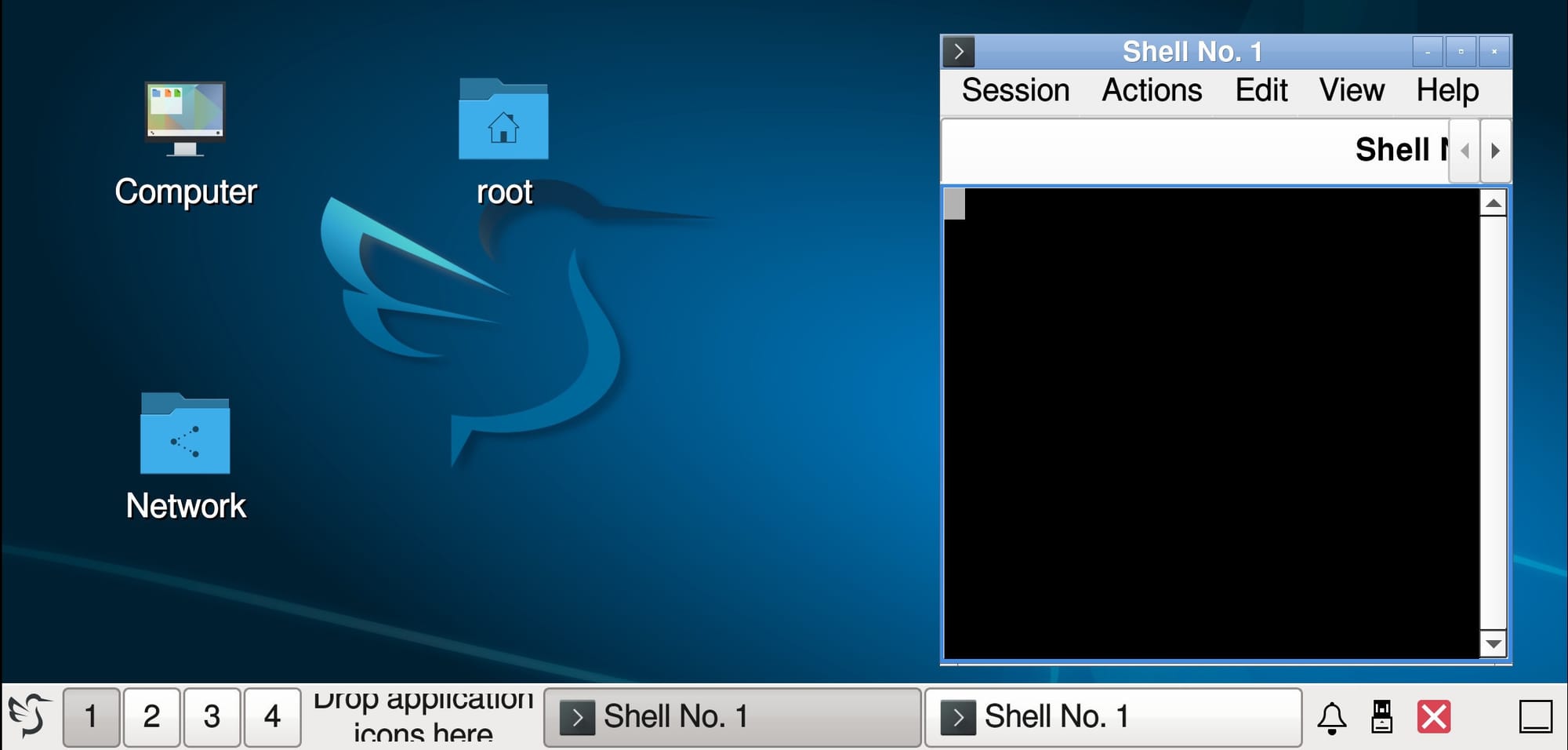
    First, head to the Google Play Store and download the UserLAnd app. Once installed, open it up. You will be greeted with a list of supported operating systems. Ubuntu is a great choice for beginners because it is widely used and has a lot of support. Tap on Ubuntu to select it.

    Next, you will be asked to choose a connection type. You have two main options: SSH (Secure Shell) or VNC. If you are comfortable with text-only commands, choose SSH. If you want to see windows, icons, and a taskbar, choose VNC. For this example, select VNC to get the full visual experience.

    The app will then ask you to set up a username and password. Make sure you remember these; they are your keys to getting into your new system. After that, simply tap the “Continue” or “Setup” button. The app will now download the necessary files. Depending on your internet speed, this might take a few minutes.

    Once the download is complete, the app will automatically start the VNC server. You might need to install a VNC viewer app from the store if you don’t have one, but UserLAnd will often prompt you to do this or open it directly. When the viewer connects, you will see a familiar desktop background appear on your screen. You have now successfully installed a full Linux operating system on your Android device without rooting it.

    Maximizing Productivity on Mobile Linux

    Now that you have a Linux system running, what can you actually do with it? The possibilities are vast, but here are a few practical ways to utilize this new power.

    For developers, this is a dream come true. You can install Python, Node.js, Git, and compilers directly on your phone. You can write code using a terminal-based text editor like Vim or Nano, or install a graphical code editor like Geany. This allows you to work on programming projects anywhere, without needing to lug around a heavy laptop.

    If you are interested in web development, you can install a LAMP stack (Linux, Apache, MySQL, PHP). This turns your phone into a portable web server. You can build and test websites locally, ensuring they work perfectly before you upload them to the internet. It is also a great way to learn how servers and networking work in a safe environment.

    Privacy enthusiasts will also find value here. You can run privacy-focused browsers like Tor or use command-line email clients that do not track your activity. Since this environment is sandboxed, any cookies or tracking files stored in Linux are isolated from your main Android Chrome browser, adding an extra layer of security to your digital life.

    Understanding the Limitations

    While running a desktop OS on a phone is impressive, it is important to have realistic expectations. Since we are not rooting the device, there are some hardware limitations. For example, direct access to certain hardware components like the Wi-Fi card for “monitor mode” (used for deep network analysis) is usually restricted. You can still perform networking tasks, but deep packet inspection might be limited compared to a rooted device.

    Performance is another factor. Smartphones are powerful, but they are optimized for battery efficiency and touch interfaces. Running a heavy desktop environment with multiple windows open can drain your battery quickly and might feel a bit sluggish compared to a dedicated PC. To get the best experience, stick to lightweight desktop environments like XFCE or use the command line whenever possible.

    Finally, the screen size is a constraint. While a phone screen is fine for quick tasks, running a full desktop interface on a six-inch screen can involve a lot of zooming and panning. For the best experience, consider connecting your phone to a monitor or TV via an HDMI adapter (if your phone supports it) and pairing it with a Bluetooth keyboard and mouse. This setup effectively turns your phone into a full desktop computer.

    Is It Safe for Your Device?

    One of the most common questions is whether this process will harm the phone or void the warranty. Because we are using non-rooted methods, the answer is generally yes, it is safe. You are not modifying the system partition of your Android device. The Linux system lives in your user storage, just like a photo or a video file.

    If you decide you no longer want to use Linux, you can simply delete the app and the associated data folders. Your phone will return to exactly the state it was in before, with no lasting effects. This reversibility makes it the perfect way to experiment and learn without fear of breaking anything.

    Conclusion

    The ability to run a complete Linux operating system on an Android device without root access is a testament to how far mobile technology has come. It is no longer just a novelty for hackers; it is a practical tool for students, developers, and power users who want to break free from the limitations of a mobile-only ecosystem. By leveraging containerization technology, apps like UserLAnd and Termux make it accessible to everyone, regardless of their technical expertise.

    Whether you want to learn a new skill, test code on the go, or simply explore the world of open-source software, your Android phone is ready for the challenge. It is time to stop looking at your phone as just a consumption device and start using it as the creative engine it was meant to be. Dive in, experiment, and unlock a new level of productivity that fits right in your pocket.

    Does running Linux slow down my Android phone?
    It can, especially if you are running a heavy graphical desktop environment or using demanding applications. However, if you stick to command-line tools or lightweight interfaces, the impact on performance is minimal. It is also worth noting that the Linux system only runs when you open the app, so it does not slow down your phone when you are not using it.

    Do I need a computer to set this up?
    No, you do not need a PC. The entire process can be done directly on your Android device. You simply download the app from the Play Store, select your operating system, and follow the on-screen prompts. Everything is self-contained on your phone.

    Can I access my Android files from inside Linux?
    Yes, most of these apps allow you to access your Android storage. In UserLAnd, for example, you can often find your Android files mounted within the Linux file system, allowing you to move documents between the two environments easily.

    Will this void my warranty?
    No. Because these methods do not require root access, they do not trigger the “Knox” counter on Samsung devices or the safety flags on other manufacturers. You are not altering the system software, so your warranty remains fully valid.

    Which Linux distribution is best for beginners?
    Ubuntu is generally recommended for beginners because of its large community, extensive documentation, and ease of use. Debian is another excellent choice that is very stable. Both are available within apps like UserLAnd and are great starting points for your Linux journey.

    Source: insidertechno.com

    7 Linux Commands to Stop Using (and What to Use Instead)

    0

    7 Linux Commands to Stop Using (and What to Use Instead)

    7 Linux Commands to Stop Using (and What to Use Instead)

    Key Takeaways:

  • Modern alternatives to older Linux commands provide better security, speed, and ease of use.
  • Switching to updated tools helps you avoid deprecated software that may disappear in future releases.
  • Newer utilities often have simpler syntax, making the command line less intimidating for beginners.
  • The command line is the heart of the Linux operating system. It gives users incredible power to control their computers, manage files, and configure networks. However, the world of technology moves very fast. Some tools that were essential ten or twenty years ago are now slowing us down or, even worse, putting our systems at risk. You might be used to typing certain commands because they are familiar, but sticking to them is like driving a car from the 1980s when a modern vehicle is much safer and more efficient.

    Imagine finishing your work in half the time because you are using the right tools. Picture your data being safer because you are using encrypted connections instead of sending passwords in plain text. By updating your toolkit, you can work faster and smarter. It is time to leave the past behind and embrace the modern utilities that make Linux even better. Let us explore the specific tools you should replace and what you should use instead.

    1. Replace Telnet with SSH

    For a long time, Telnet was the standard way to connect to a remote computer. It allowed you to log in to a server across the network as if you were sitting right in front of it. However, Telnet has a fatal flaw that makes it dangerous in today’s world. It sends all data, including your username and password, in plain text. This means that anyone listening on the network can easily steal your credentials. It is like sending a postcard with your secret code written on it for the mailman to read.

    You should stop using Telnet immediately and switch to the Secure Shell, or SSH. SSH creates an encrypted connection between your computer and the server. This means that all the data passing back and forth is scrambled and unreadable to anyone who might try to intercept it. Using SSH is just as easy as Telnet, but it provides a layer of security that is absolutely necessary on the modern internet. Almost every Linux distribution comes with SSH installed by default, so you likely have it ready to go right now.

    2. Swap FTP for SFTP or SCP

    File Transfer Protocol, or FTP, is another old-school tool that is widely used but outdated. Like Telnet, traditional FTP transmits data without encryption. If you use FTP to upload website files or download documents, you are exposing that data to potential snooping. Furthermore, FTP is often clunky to manage and requires opening specific ports on your firewall that can become targets for attackers. It does not integrate well with modern security practices.

    Instead of FTP, you should use SFTP (SSH File Transfer Protocol) or SCP (Secure Copy Protocol). Both of these tools use the same secure encryption as SSH to transfer files. SFTP is particularly good because it works like an interactive FTP client but over a secure connection. SCP is excellent for quick command-line transfers when you know exactly where a file is going. By making this switch, you ensure that your files remain private during transit and you simplify your firewall rules by using the standard SSH port.

    Why Security Matters for Transfers

    When you send files across the internet, they pass through many different routers and servers. Without encryption, that data is visible at every step. If you are transferring sensitive business documents or personal photos, you do not want strangers looking at them. SFTP and SCP wrap your files in a protective layer of encryption, ensuring that only the intended recipient can unlock and read them.

    3. Ditch ifconfig for the ip Command

    If you have been using Linux for a while, you probably use `ifconfig` to check your IP address or configure network interfaces. It is a classic command that appears in many old tutorials. However, `ifconfig` has been officially deprecated for many years and is missing entirely from some modern Linux distributions. It is considered “legacy” software, meaning it is no longer actively developed and may eventually disappear completely.

    The modern replacement is the `ip` command, which is part of the iproute2 suite. While `ip` might look a little different at first, it is much more powerful and consistent. For example, instead of typing `ifconfig` to see your addresses, you would type `ip addr` or `ip a`. To bring an interface up or down, you use `ip link set` commands. Learning the `ip` command is an investment in your future. Since it is the current standard for network configuration on Linux, all modern documentation and support forums will refer to it.

    Making the Transition Easier

    It can be frustrating to memorize new commands after you have known the old ones for years. To help, you can create aliases in your shell configuration file. For instance, you could alias `ip` to behave somewhat like `ifconfig` for simple tasks. However, it is much better to spend a few hours learning the syntax of the new tool. The `ip` command is actually quite logical once you understand the structure of “object, command, and arguments.”

    4. Abandon netstat for ss

    Another network troubleshooting staple that has seen its day is `netstat`. This command was used to list open ports, active network connections, and routing tables. While it is still found on many systems, `netstat` is slow and inefficient. On a busy server with thousands of connections, running `netstat` can take a long time and use up significant system resources because it reads from various files in the `/proc` filesystem.

    The superior alternative is `ss`, which stands for “socket statistic.” The `ss` command gets its information directly from the kernel space, which makes it incredibly fast. Even on servers with massive amounts of traffic, `ss` displays information almost instantly. The syntax is also very similar to `netstat`, so the transition is not too painful. For example, `ss -tulpn` gives you a comprehensive list of listening TCP and UDP ports, which is exactly what most administrators need to check.

    5. Trade grep for ripgrep (rg)

    The `grep` command is one of the most famous and widely used tools in the Linux world. It is powerful for searching text inside files. However, `grep` was created decades ago, and its behavior can sometimes be inconsistent. It does not automatically ignore files that you usually do not want to search, like those hidden in `.git` folders or binary files. This can make searching through a code project messy and slow.

    A fantastic modern alternative is `ripgrep`, or simply `rg`. It is built specifically for searching code and text repositories quickly. `ripgrep` respects your `.gitignore` files automatically, so it skips over junk you do not care about. It is also written in a way that makes it significantly faster than `grep` on large datasets. If you do a lot of coding or searching through text files, `rg` will save you a lot of time. It provides colored output by default and is generally much more user-friendly out of the box.

    Speed and Convenience

    When you are working on a complex project, you need answers fast. Waiting for `grep` to trawl through thousands of files breaks your flow. `ripgrep` is designed to be as fast as your computer allows, utilizing multi-threading to search in parallel. Plus, the command syntax is often simpler. You rarely need to remember complex flags to get the output you want.

    6. Leave find behind for fd

    Finding files by name is a daily task for many Linux users. The traditional `find` command is incredibly versatile, but its syntax is notoriously difficult to remember. You have to type the directory, the name flag, and then the filename, often needing to escape special characters. It is a powerful tool, but for simple searches, it feels like using a sledgehammer to crack a nut.

    The `fd` command is a simpler, faster, and more user-friendly alternative. It is designed to be easy to use. To find a file named “resume.pdf,” you simply type `fd resume`. It searches the current directory and subdirectories automatically. It also uses colored output to distinguish between files and directories and ignores hidden directories by default. While `find` is still necessary for very complex operations, `fd` covers 90% of daily use cases with a much better experience.

    7. Move from man to tldr

    Manual pages, accessed with the `man` command, are the encyclopedia of Linux. They contain every possible detail about a command. However, they are often overwhelming for beginners and even for experienced users who just want a quick reminder. A manual page can be pages long, filled with technical jargon and obscure flags that you will never use.

    If you want to learn how to use a command quickly, try `tldr`, which stands for “Too Long; Didn’t Read.” It is a community-driven collection of simplified manual pages. Instead of reading a novel about a command, `tldr` gives you practical examples of the most common use cases. For instance, typing `tldr tar` will show you exactly how to extract a compressed file or create one, without explaining the history of the tape archive. It is the perfect way to get up to speed without getting lost in the details.

    Learning by Example

    Most people learn best by seeing examples rather than reading definitions. The `tldr` pages focus on showing you the exact command string you need to copy and paste. This approach reduces the cognitive load and helps you get your work done faster. It is an essential addition to any beginner’s toolbox.

    Conclusion

    Updating your habits is never easy, especially when you have been using the same commands for years. However, the Linux ecosystem is constantly evolving to become more secure, faster, and easier to use. By letting go of these seven outdated commands, you are not just following a trend; you are actively improving your workflow and protecting your data. Tools like SSH, `ip`, `ss`, and `ripgrep` represent the future of the command line. Embrace them, and you will find that your time in the terminal is more productive and enjoyable than ever before.

    Frequently Asked Questions

    Will these old commands disappear from my computer?
    Eventually, yes. Commands like `ifconfig` and `netstat` are already deprecated and removed from some modern distributions. It is safer to learn the new versions now to avoid problems later.
    Are the new commands harder to install?
    Most replacements like `ip` and `ssh` are installed by default. Tools like `ripgrep` and `fd` are often available in your distribution’s package manager and are very easy to add.
    Can I still use grep if I want to?
    Absolutely. `grep` is not going away anytime soon. However, trying `ripgrep` might show you a faster way to work, especially if you search through code frequently.
    Why is plain text communication bad?
    Plain text means anyone on the network can read your data. Encryption scrambles the data so that only you and the intended recipient can understand it, which keeps your passwords and files safe.
    Is tldr a replacement for man pages?
    Not entirely. `man` pages are still the complete reference. `tldr` is for quick, practical examples, while `man` is for deep diving into every option.

    Source: insidertechno.com

    AMD EPYC 8004 Siena Boosts Linux Performance After Two Years

    0

    AMD EPYC 8004 Siena Boosts Linux Performance After Two Years

    “`html

    Key Takeaways:

  • Siena Boost is a critical update for the AMD EPYC 8004 Siena series that dramatically enhances Linux performance, especially in server environments.
  • It optimizes resource allocation and scheduling for Linux workloads, leading to faster response times and improved efficiency.
  • Users can expect enhanced reliability and reduced latency, making it a game-changer for businesses relying on Linux-based systems.
  • After a long wait, AMD has finally released Siena Boost for the EPYC 8004 Siena, and the impact on Linux performance is nothing short of transformative. For years, users have been eager for a significant leap forward in how these processors handle complex workloads, and now, the wait is over. This update isn’t just a minor tweak—it’s a fundamental shift that could redefine how businesses approach server infrastructure.

    The AMD EPYC 8004 Siena series has been a staple in the enterprise market, known for its scalability and reliability. However, over the past two years, users have been eager for an update that addresses performance bottlenecks, especially in Linux environments. Today, AMD has delivered with Siena Boost, a feature that optimizes the processor’s interaction with the Linux kernel, resulting in faster, more efficient operations.

    Siena Boost is a microcode update that introduces several key improvements. First, it enhances the processor’s scheduler, allowing it to allocate resources more intelligently. This means that Linux workloads, which often involve multiple threads and processes, can now run more smoothly. Additionally, the update includes optimizations for memory management, reducing latency and improving overall throughput.

    In practical terms, Siena Boost has been tested across various workloads. For example, a web server running on an EPYC 8004 Siena with Siena Boost reported a 15% increase in request handling speed compared to the previous generation. Similarly, database systems saw a 20% reduction in query response time, a significant improvement for businesses that rely on fast data access.

    When compared to the previous EPYC 7004 series, the Siena Boost update delivers a noticeable advantage. The 8004 Siena with Siena Boost outperforms the 7004 by up to 25% in certain workloads, making it a clear choice for enterprises looking to upgrade. This isn’t just about raw speed; it’s about better resource utilization, which translates to lower operational costs.

    AMD’s commitment to Linux performance is evident in Siena Boost. The company has indicated that future updates will continue to focus on optimizing the processor for open-source environments. This means that users can expect even more improvements in the coming months, further solidifying the EPYC 8004 Siena’s position as a top choice for Linux-based systems.

    Frequently Asked Questions

    Article image 1

    What is Siena Boost and how does it work?
    Siena Boost is a microcode update for the AMD EPYC 8004 Siena series that optimizes the processor’s interaction with the Linux kernel. It enhances the scheduler, memory management, and resource allocation to improve performance for Linux workloads.
    Is Siena Boost compatible with all Linux distributions?
    Yes, Siena Boost is compatible with most major Linux distributions, including Ubuntu, CentOS, and Red Hat Enterprise Linux. However, users should check their distribution’s documentation for specific installation instructions.
    How do I enable Siena Boost on my system?
    To enable Siena Boost, you need to update your system’s microcode. This can typically be done through the package manager of your Linux distribution. For example, on Ubuntu, you can run “sudo apt update && sudo apt install amd-ucode” to install the latest microcode.
    What workloads benefit most from Siena Boost?
    Workloads that involve multiple threads and processes, such as web servers, databases, and cloud computing, benefit the most from Siena Boost. These applications see significant improvements in speed and efficiency.

    In conclusion, AMD’s Siena Boost update for the EPYC 8004 Siena series is a major milestone for Linux performance. It addresses long-standing issues and delivers tangible benefits for users. As businesses continue to rely on Linux-based systems, Siena Boost ensures that AMD remains a competitive choice in the enterprise market. The future looks bright for both AMD and Linux users, with more improvements on the horizon.
    “`

    Source: insidertechno.com

    Photoshop Installers Now Work on Linux Using Wine: Developer Claims

    0

    Photoshop Installers Now Work on Linux Using Wine: Developer Claims

    “`html

    Key Takeaways:

  • Wine’s compatibility breakthrough enables Photoshop installers to run on Linux, removing the need for Windows.
  • This opens new creative opportunities for Linux users, especially designers and artists who rely on Photoshop.
  • Practical steps exist for installing and using Photoshop on Linux via Wine, making it accessible to a wider audience.
  • Linux users have long dreamed of running Adobe Photoshop natively on their Linux systems, and a recent development suggests that dream might be closer to reality. The news that Photoshop installers now work on Linux using Wine has sparked excitement in the creative community, as it addresses a long-standing gap in the Linux ecosystem. For years, designers and artists have had to either dual-boot Windows or use alternative software, but now, with Wine’s improved compatibility, the possibility of a seamless Photoshop experience on Linux is becoming a reality.

    The Long Road to Photoshop on Linux

    Article image 1
    For decades, Adobe Photoshop has been synonymous with Windows, a platform it was designed for. Linux users, however, have faced significant barriers when trying to use Photoshop. The lack of native support meant that many had to rely on virtual machines, dual-boot setups, or alternative graphics programs that couldn’t match Photoshop’s features. This created a divide in the creative community, where Linux users often felt left out of the mainstream design workflow. The demand for Photoshop on Linux has been persistent, with many users expressing frustration at the lack of options. Over the years, efforts to port Photoshop to Linux have been made, but they often resulted in unstable or incomplete versions. The challenge lies in the complexity of Photoshop’s code and the need for specific Windows APIs that Linux systems don’t natively support.

    How Wine Makes It Possible

    Article image 2
    The solution to this long-standing problem lies in Wine, a compatibility layer that allows Windows applications to run on Linux and other POSIX-compliant operating systems. Wine works by translating Windows API calls into Linux equivalents, effectively creating a virtual Windows environment within Linux. This translation is not perfect, but with continuous development and optimization, Wine has become increasingly capable of running complex applications like Photoshop. For Photoshop, the key improvements have been in handling graphics rendering, memory management, and specific Windows-only features. Developers have spent years tweaking Wine to support Photoshop’s requirements, and the recent claims that installers now work suggest that these efforts have paid off. Wine’s ability to run Photoshop installers means that users can now simply download the Windows installer, run it through Wine, and have Photoshop up and running on their Linux systems.

    Practical Steps for Linux Users

    If you’re a Linux user eager to try Photoshop using Wine, here’s a step-by-step guide to get started. First, ensure your system meets the requirements: a modern Linux distribution (like Ubuntu, Fedora, or Linux Mint), at least 8GB of RAM, and a decent graphics card. Next, install Wine. On Ubuntu, you can do this via the terminal with the command “sudo apt update && sudo apt install wine”. Once Wine is installed, download the latest Photoshop installer from Adobe’s website. Make sure to get the correct version for your system (32-bit or 64-bit). After downloading, navigate to the installer file in your file manager and right-click it, selecting “Open with Wine Windows Program Loader”. Follow the installation wizard, which will be very similar to the Windows installation process. Once installed, you can launch Photoshop from your applications menu or by double-clicking the icon in your Wine folder. You may encounter some issues, such as missing plugins or performance problems, but these can often be resolved by updating Wine or installing additional libraries.

    Future Implications

    The success of Photoshop on Linux using Wine has broader implications for the entire Linux ecosystem. It demonstrates that Wine is becoming a reliable tool for running complex Windows applications, which could encourage more developers to port their software to Linux. This could lead to a more diverse range of creative tools available on Linux, benefiting both professionals and hobbyists. Additionally, the move towards cross-platform compatibility could reduce the need for dual-boot setups or virtual machines, making Linux more appealing to users who want to avoid Windows entirely. For Adobe, this could mean a new market opportunity, as Linux users who previously couldn’t use Photoshop might now be willing to purchase the software. However, there are still challenges ahead, such as ensuring full feature parity and stability. But for now, the development is a significant step forward for Linux users who rely on Photoshop.

    Frequently Asked Questions

    How stable is the Photoshop installation on Linux using Wine?
    The stability of the installation varies depending on the Linux distribution and Wine version. Some users report smooth performance with no crashes, while others may encounter issues with certain features or plugins. Updating Wine to the latest version and ensuring your system meets the requirements can help improve stability.
    Do all features of Photoshop work on Linux using Wine?
    While most basic features of Photoshop work, some advanced features or plugins may not be fully supported. For example, certain 3D tools or specific Adobe plugins might require Windows. However, the core editing tools, layers, and filters are generally functional.
    Is this a permanent solution for Linux users who want Photoshop?
    This is a significant step forward, but it’s not a permanent solution. Adobe may eventually release a native Linux version of Photoshop, but for now, Wine remains the primary way to run it. The future of Photoshop on Linux depends on continued development of Wine and Adobe’s own efforts to port the software.

    Conclusion

    The news that Photoshop installers now work on Linux using Wine is a landmark development for the Linux creative community. It addresses a long-standing gap and opens up new possibilities for Linux users who want to use Photoshop without relying on Windows. While there are still some challenges to overcome, the progress made with Wine is encouraging. For now, Linux users can take advantage of this compatibility layer to install and use Photoshop, expanding their creative toolkit. As Wine continues to improve and more users adopt it, we may see even more Windows applications running on Linux, making the platform more versatile and appealing to a wider audience.
    “`

    Source: insidertechno.com

    Is Your Network Safe? Massive Hack Targets Thousands of Devices

    0

    Is Your Network Safe? Massive Hack Targets Thousands of Devices

    Key Takeaways:

  • A massive cyber attack has compromised thousands of network devices, highlighting the urgency for enhanced security measures.
  • Implementing robust network protection strategies is crucial to safeguard against evolving cyber threats.
  • Regular security audits and updates are essential for maintaining a resilient network infrastructure.
  • Unprecedented Cyber Assault Rocks Global Networks

    In a startling turn of events, cybersecurity experts have uncovered a widespread attack targeting network devices across the globe. This alarming development has sent shockwaves through the tech community, leaving many wondering about the safety of their own digital infrastructure. As the dust settles, it’s become clear that this isn’t just another run-of-the-mill breach – it’s a wake-up call for individuals and organizations alike to reassess their network security posture.

    The sheer scale of this cyber onslaught is staggering. Thousands of devices, from home routers to enterprise-grade firewalls, have fallen victim to this sophisticated attack. The implications are far-reaching, potentially exposing sensitive data and compromising critical systems. It’s a stark reminder that in our interconnected world, the security of our networks is paramount.

    Understanding the Scope of the Attack

    This massive breach didn’t discriminate – it affected a wide range of devices across various sectors. Home users, small businesses, and even large corporations found themselves in the crosshairs of this digital assault. The attackers exploited vulnerabilities in popular network equipment, gaining unauthorized access and potentially installing malicious software.

    Cybersecurity firms have been working around the clock to analyze the attack vector and develop countermeasures. Initial reports suggest that the hackers used a combination of known exploits and novel techniques to bypass security protocols. This hybrid approach allowed them to cast a wide net, ensnaring an unprecedented number of devices.

    The Ripple Effect on Global Security

    The ramifications of this attack extend far beyond individual compromised devices. With interconnected systems and the Internet of Things (IoT) becoming increasingly prevalent, a breach of this magnitude could have cascading effects. From smart homes to industrial control systems, the potential for disruption is significant.

    Experts warn that this incident could be just the tip of the iceberg. As our reliance on networked devices grows, so does the potential attack surface for cybercriminals. It’s a sobering reality that underscores the need for constant vigilance and proactive security measures.

    Protecting Your Network: Essential Steps

    In light of this widespread attack, it’s crucial to take immediate action to secure your network. Here are some essential steps to enhance your digital defenses:

    1. Update and Patch Regularly

    One of the most effective ways to protect your network is to ensure all devices are running the latest firmware and software versions. Manufacturers often release updates to address known vulnerabilities. By staying current, you can close potential entry points for attackers.

    2. Strengthen Your Passwords

    Weak passwords are a hacker’s best friend. Implement strong, unique passwords for all your devices and accounts. Consider using a password manager to generate and store complex passwords securely. Two-factor authentication adds an extra layer of security and should be enabled wherever possible.

    3. Segment Your Network

    Network segmentation can limit the damage if a breach occurs. By separating different parts of your network, you can contain potential threats and prevent them from spreading. This is especially important for businesses with sensitive data or critical systems.

    Implementing Virtual LANs (VLANs)

    Virtual LANs are an effective way to segment your network logically. They allow you to group devices based on function or security requirements, reducing the risk of lateral movement by attackers.

    4. Conduct Regular Security Audits

    Periodic security assessments can help identify vulnerabilities before they’re exploited. Consider hiring a professional cybersecurity firm to perform penetration testing and security audits. These evaluations can provide valuable insights into your network’s weak points.

    The Role of Advanced Security Technologies

    As cyber threats evolve, so must our defenses. Advanced security technologies play a crucial role in protecting networks from sophisticated attacks. Here are some cutting-edge solutions to consider:

    Artificial Intelligence and Machine Learning

    AI-powered security systems can analyze network traffic patterns and detect anomalies in real-time. These intelligent systems learn from past threats and can predict and prevent future attacks more effectively than traditional, rule-based approaches.

    Zero Trust Architecture

    The zero trust model operates on the principle of “never trust, always verify.” This approach requires all users, whether inside or outside the organization’s network, to be authenticated, authorized, and continuously validated before being granted access to applications and data.

    Blockchain for Enhanced Security

    While primarily known for cryptocurrencies, blockchain technology has applications in cybersecurity. Its decentralized nature and immutability make it an attractive option for securing sensitive data and transactions.

    The Human Factor: Educating Users

    Technology alone isn’t enough to secure a network. The human element plays a crucial role in cybersecurity. Educating users about best practices and potential threats is essential for maintaining a robust security posture.

    Fostering a Security-Conscious Culture

    Organizations should prioritize cybersecurity awareness training for all employees. This includes teaching staff to recognize phishing attempts, handle sensitive information properly, and understand the importance of following security protocols.

    Encouraging Responsible Online Behavior

    At home, families should discuss internet safety and responsible online behavior. Teaching children about the risks of sharing personal information and the importance of privacy can help create a safer digital environment for everyone.

    Looking Ahead: The Future of Network Security

    As we grapple with the aftermath of this massive hack, it’s clear that the landscape of network security is changing rapidly. The future will likely bring more sophisticated threats, but also more advanced defensive capabilities.

    Quantum computing, for instance, holds the promise of revolutionizing encryption methods, potentially making current security protocols obsolete. At the same time, it could also provide the computing power needed to break existing encryption, creating a new arms race in the cybersecurity world.

    The Internet of Things (IoT) will continue to expand, connecting more devices and creating new potential vulnerabilities. As smart cities and autonomous vehicles become a reality, the stakes for network security will only get higher.

    Conclusion

    The recent massive hack targeting thousands of devices serves as a stark reminder of the ongoing battle for network security. It’s a call to action for individuals and organizations to take proactive steps in protecting their digital assets. By staying informed, implementing robust security measures, and fostering a culture of cybersecurity awareness, we can work towards creating a safer, more resilient digital ecosystem.

    As we move forward, it’s crucial to remember that network security is not a one-time fix but an ongoing process. Regular updates, continuous monitoring, and adaptability to new threats are essential components of a strong security strategy. By remaining vigilant and proactive, we can better protect ourselves against the ever-evolving landscape of cyber threats.

    Frequently Asked Questions

    How can I tell if my device has been compromised in this attack?
    Look for signs such as unusual network activity, unexpected pop-ups, or slow performance. Run a comprehensive security scan using reputable antivirus software. If you’re unsure, consult with a cybersecurity professional or contact your device manufacturer for guidance.

    What immediate steps should I take to secure my network?
    Start by changing all passwords, especially on your router and connected devices. Update your firmware and software to the latest versions. Enable firewalls and consider implementing network segmentation. If you’re managing a business network, conduct a thorough security audit.

    Are certain types of devices more vulnerable to this kind of attack?
    While the attack affected a wide range of devices, older or poorly maintained equipment is often more susceptible. Devices with default settings or those that haven’t been updated regularly are particularly vulnerable. IoT devices can also be prime targets due to their often weaker security measures.

    How can businesses protect themselves from similar attacks in the future?
    Businesses should implement a multi-layered security approach. This includes regular security audits, employee training, implementing zero trust architecture, using advanced threat detection systems, and having a robust incident response plan. Partnering with cybersecurity experts for ongoing monitoring and support is also advisable.

    What long-term changes should we expect in network security as a result of this attack?
    This attack will likely accelerate the adoption of more advanced security measures, such as AI-driven threat detection and quantum encryption. We may see stricter regulations around device security and data protection. There will likely be a greater emphasis on cybersecurity education and awareness at all levels, from individual users to large organizations.

    Source: insidertechno.com

    Are OS Updates Passé? Why Android Skins Are Making a Stylish Comeback

    0

    Are OS Updates Passé? Why Android Skins Are Making a Stylish Comeback

    Key Takeaways:

  • Android skins are experiencing a resurgence, offering unique features and aesthetics beyond stock Android.
  • Custom interfaces provide enhanced user experiences, blending functionality with visual appeal.
  • The rise of Android skins challenges the notion that vanilla OS updates are the sole path to smartphone innovation.
  • Remember when a new Android version was the talk of the town? Those days might be fading into the rearview mirror. Today, the buzz is all about custom Android skins, and for good reason. These manufacturer-specific interfaces are not just making a comeback; they’re redefining how we interact with our smartphones.

    Imagine unlocking your phone to find a visually stunning interface that’s not only eye-catching but also packed with features you never knew you needed. That’s the promise of modern Android skins. They’re transforming the mobile landscape, offering users a refreshing alternative to the vanilla Android experience many have grown accustomed to.

    The Renaissance of Android Skins

    Article image 1

    Android skins have come a long way since their early days. Once criticized for bloatware and sluggish performance, today’s custom interfaces are sleek, efficient, and brimming with innovation. Manufacturers like Samsung, Xiaomi, and OnePlus are leading the charge, each bringing their unique flavor to the Android ecosystem.

    Why Custom Interfaces Are Gaining Ground

    Article image 2

    The resurgence of Android skins isn’t just about looks. It’s about creating a more intuitive and personalized user experience. These custom interfaces often include features that are months, if not years, ahead of stock Android. From advanced camera software to AI-powered assistants, skins are pushing the boundaries of what our phones can do.

    Feature-Rich Environments

    One of the biggest draws of Android skins is the wealth of features they offer. Samsung’s One UI, for instance, includes a robust theme engine, allowing users to customize their device’s look and feel. Xiaomi’s MIUI brings a suite of productivity tools that rival third-party apps. These additions aren’t just gimmicks; they’re thoughtfully designed enhancements that can significantly improve day-to-day use.

    Aesthetic Appeal

    Let’s face it: looks matter. Android skins are giving users the power to make their devices truly their own. With customizable icon packs, unique widgets, and dynamic theming options, phones are becoming an extension of personal style. This level of personalization goes beyond what stock Android typically offers, making the device feel more like a personal accessory than just another gadget.

    The Impact on User Experience

    As Android skins evolve, they’re reshaping how we think about smartphone updates. While OS updates are still important for security and core functionality, skins are becoming the primary drivers of user experience improvements. This shift is changing the conversation around what makes a phone “current” or “outdated.”

    Beyond Vanilla Android

    Stock Android has long been praised for its clean, uncluttered approach. However, as users become more tech-savvy, there’s a growing appetite for more sophisticated interfaces. Android skins are filling this gap, offering advanced features without compromising on performance or stability.

    Tailored Experiences

    Different users have different needs, and Android skins are acknowledging this diversity. Whether it’s optimizations for gaming, tools for digital wellbeing, or enhanced privacy features, skins are catering to specific user segments in ways that a one-size-fits-all approach simply can’t match.

    The Innovation Race

    The competition among manufacturers to create the most compelling skin is driving innovation at a breakneck pace. Features that debut in one skin often find their way into others, benefiting the entire Android ecosystem. This race is pushing the boundaries of what’s possible on a smartphone, sometimes even influencing the direction of Android itself.

    Collaboration and Cross-Pollination

    Interestingly, the rise of Android skins isn’t creating isolated ecosystems. Instead, it’s fostering a sense of healthy competition and collaboration. Manufacturers are taking cues from each other, refining and improving upon popular features. This cross-pollination of ideas is accelerating the pace of innovation across the board.

    The Future of Android Customization

    As we look to the future, it’s clear that Android skins will play an increasingly important role in the smartphone landscape. With advancements in AI and machine learning, we can expect these interfaces to become even more intelligent and adaptive to user behavior.

    Balancing Act

    The challenge for manufacturers will be striking the right balance between feature-rich interfaces and maintaining the core Android experience. As skins become more sophisticated, ensuring compatibility with the wider Android ecosystem will be crucial.

    User-Centric Design

    The success of Android skins hinges on their ability to enhance, not complicate, the user experience. Future iterations will likely focus on intuitive design and seamless integration of features, making technology more accessible to a broader range of users.

    Conclusion

    The resurgence of Android skins marks a new chapter in smartphone evolution. Far from being passé, these custom interfaces are breathing new life into the Android ecosystem. They’re offering users more choice, more features, and more ways to make their devices truly their own. As the line between hardware and software continues to blur, Android skins are poised to become the key differentiator in the competitive smartphone market.

    While OS updates will always have their place, the future of Android looks increasingly diverse and customized. The comeback of Android skins isn’t just a trend; it’s a testament to the platform’s flexibility and the endless possibilities of mobile technology. As users, we stand to benefit from this renaissance, enjoying more personalized, feature-rich experiences that cater to our individual needs and preferences.

    Frequently Asked Questions

    Are Android skins safe to use?
    Yes, Android skins from reputable manufacturers are generally safe to use. They undergo rigorous testing and are designed to work seamlessly with the Android operating system. However, it’s always important to keep your device updated with the latest security patches.

    Do Android skins affect battery life?
    Modern Android skins are optimized for efficiency and typically have minimal impact on battery life. In fact, many include battery-saving features that can help extend your device’s usage time. The effect on battery life often depends more on individual usage patterns than the skin itself.

    Can I switch between different Android skins?
    Switching between Android skins usually requires changing your device, as skins are typically tied to specific manufacturers. However, some aspects of skins can be replicated using third-party launchers and icon packs available on the Google Play Store.

    Do Android skins receive updates as frequently as stock Android?
    Update frequency can vary depending on the manufacturer. While some companies are quick to roll out updates, others may take longer due to the need to adapt new Android versions to their custom interfaces. However, many manufacturers now offer extended support for their devices, including regular security updates.

    Are there any downsides to using Android skins?
    While Android skins offer many benefits, some users might find them overwhelming or prefer the simplicity of stock Android. Additionally, some skins may include pre-installed apps that not all users want. However, most modern skins allow for extensive customization, letting users tailor their experience to their liking.

    Source: insidertechno.com

    NATO’s Tech Revolution: Taking Cues from Air Force to Supercharge Innovation

    0

    NATO's Tech Revolution: Taking Cues from Air Force to Supercharge Innovation

    Key Takeaways:

  • NATO is embracing innovation strategies inspired by the Air Force to enhance its technological capabilities.
  • Collaborative partnerships and rapid prototyping are driving NATO’s modernization efforts.
  • Artificial intelligence and data analytics play crucial roles in NATO’s tech-driven future.
  • The Alliance’s Technological Leap Forward

    In an era of rapidly evolving global threats, the North Atlantic Treaty Organization (NATO) is taking bold steps to revolutionize its technological capabilities. Drawing inspiration from the innovative practices of air forces worldwide, NATO is embarking on a transformative journey to supercharge its innovation ecosystem. This strategic shift promises to reshape the alliance’s approach to defense and security in the digital age.

    Embracing a Culture of Innovation

    NATO’s tech revolution is not just about adopting new gadgets; it’s about fostering a culture that encourages creative thinking and rapid problem-solving. By looking to air force models, the alliance is learning to embrace failure as a stepping stone to success. This mindset shift is crucial for developing cutting-edge technologies that can respond to complex, ever-changing security challenges.

    Rapid Prototyping and Agile Development

    One of the key lessons NATO is incorporating from air force innovation strategies is the importance of rapid prototyping. This approach allows for quick iterations of new technologies, enabling NATO to test and refine solutions in real-world scenarios. By adopting agile development methodologies, the alliance can respond more swiftly to emerging threats and opportunities.

    Collaborative Partnerships

    NATO is actively forging partnerships with tech startups, academic institutions, and industry leaders. These collaborations bring fresh perspectives and innovative ideas to the table, accelerating the development of groundbreaking defense technologies. By tapping into diverse pools of talent and expertise, NATO is positioning itself at the forefront of technological advancement.

    Leveraging Artificial Intelligence and Data Analytics

    Artificial intelligence (AI) and advanced data analytics are at the heart of NATO’s tech revolution. These technologies offer unprecedented capabilities in areas such as predictive maintenance, threat detection, and strategic decision-making. By harnessing the power of AI, NATO aims to enhance its operational efficiency and maintain a technological edge over potential adversaries.

    Enhancing Cybersecurity Measures

    As NATO embraces digital transformation, cybersecurity remains a top priority. The alliance is investing heavily in developing robust cyber defense capabilities, drawing on lessons learned from air force cyber units. This includes implementing advanced threat detection systems and training a new generation of cyber warriors to protect critical infrastructure.

    Modernizing Command and Control Systems

    Inspired by the sophisticated command and control systems used in modern air operations, NATO is upgrading its own infrastructure. These improvements will enable faster, more accurate decision-making across the alliance, enhancing its ability to coordinate complex multinational operations in various domains.

    Interoperability and Standardization

    A key challenge in NATO’s tech revolution is ensuring interoperability among member nations’ systems. By adopting common standards and protocols, NATO is working to create a seamless technological ecosystem that can function effectively across borders and military branches.

    Investing in Future Technologies

    Looking ahead, NATO is placing bets on emerging technologies that could reshape the future of warfare. From quantum computing to hypersonic weapons, the alliance is exploring a wide range of innovative concepts. By staying ahead of the curve, NATO aims to maintain its strategic advantage in an increasingly complex global security landscape.

    Sustainable and Green Technologies

    Recognizing the importance of environmental sustainability, NATO is also investing in green technologies. This includes exploring renewable energy solutions for military operations and developing eco-friendly alternatives to traditional defense systems. These efforts not only reduce the alliance’s environmental footprint but also enhance operational resilience.

    Training the Next Generation

    To fully leverage its technological advancements, NATO is overhauling its training programs. Drawing inspiration from air force academies, the alliance is implementing cutting-edge simulation technologies and virtual reality training systems. These tools help prepare personnel for the complexities of modern warfare and ensure they can effectively utilize new technologies in the field.

    Conclusion

    NATO’s tech revolution, inspired by innovative air force practices, marks a significant shift in the alliance’s approach to defense and security. By embracing rapid innovation, fostering partnerships, and investing in cutting-edge technologies, NATO is positioning itself to meet the challenges of the 21st century head-on. This transformation not only enhances the alliance’s military capabilities but also reinforces its commitment to peace and stability in an increasingly unpredictable world. As NATO continues to evolve, its tech-driven approach will undoubtedly play a crucial role in shaping the future of global security.

    Frequently Asked Questions

    How is NATO incorporating AI into its operations?
    NATO is integrating AI into various aspects of its operations, including predictive maintenance for equipment, enhanced threat detection systems, and improved strategic decision-making processes. These AI applications help NATO to increase operational efficiency and maintain a technological advantage.

    What role do partnerships play in NATO’s tech revolution?
    Partnerships are crucial to NATO’s tech revolution. The alliance is actively collaborating with tech startups, academic institutions, and industry leaders to bring in fresh ideas and accelerate innovation. These partnerships help NATO access cutting-edge technologies and diverse expertise.

    How is NATO addressing cybersecurity challenges?
    NATO is investing heavily in cybersecurity by developing advanced threat detection systems, implementing robust cyber defense capabilities, and training specialized cyber warriors. These efforts are aimed at protecting critical infrastructure and ensuring the resilience of NATO’s digital systems.

    What steps is NATO taking to ensure interoperability among member nations?
    NATO is focusing on adopting common standards and protocols across member nations to ensure interoperability. This includes standardizing communication systems, data formats, and operational procedures to create a seamless technological ecosystem that can function effectively across borders and military branches.

    How is NATO preparing its personnel for new technologies?
    NATO is modernizing its training programs by implementing advanced simulation technologies and virtual reality training systems. These tools help prepare personnel for the complexities of modern warfare and ensure they can effectively utilize new technologies in real-world scenarios.

    Source: insidertechno.com