Key Takeaways:
Have you ever looked at your smartphone and felt like it was capable of so much more than just scrolling through social media or playing games? You carry a supercomputer in your pocket, yet most of us only use a fraction of its power. For years, tech enthusiasts have dreamed of turning their Android devices into full-fledged laptops, but the process usually involved complicated “rooting” procedures that could brick the device or void the warranty. However, the landscape has changed dramatically. Today, you can unlock the true potential of your hardware to run a complete desktop-class operating system alongside your regular apps. It is now entirely possible to transform your mobile experience into a powerhouse for productivity, coding, and privacy, all without risking the security of your main system.
Why Turn Your Android Device Into a Linux Machine?
The idea of installing a computer operating system on a phone might seem strange at first. Why bother when Android already works perfectly well? The answer lies in the flexibility and raw power that a full desktop environment provides. Android is fantastic for touch-centric tasks, but it can be limiting when you try to perform heavy-duty work like serious software development, running complex servers, or using specific security tools.
By installing a full Linux distribution on your Android, you bridge the gap between mobile convenience and desktop capability. Imagine being able to code in Python or C++ while riding the bus, run a web server to test a website, or use privacy-focused desktop browsers that don’t track your data. For students, this means having a portable computer lab for learning how to use the command line. For professionals, it means having a backup workstation ready at a moment’s notice. You essentially get a second brain that lives inside your phone, completely separate from your personal photos and messages, dedicated purely to work and experimentation.
The Magic of Containerization: How It Works Without Root
In the past, putting Linux on a phone required “rooting,” which means gaining administrative control over the Android operating system. This process is risky. If you made a mistake, you could render your phone unusable. Furthermore, rooting usually triggers security locks in banking apps and breaks safety features like Google Pay.
Fortunately, modern solutions use a technology called containerization. Think of your Android phone as a house. Rooting would be like knocking down walls to build an extension. Containerization, on the other hand, is like pitching a tent in the backyard. It exists within the property boundaries, but it is completely self-contained. It does not alter the structure of the house (Android) at all.
This is achieved through a tool called `proot`. It stands for “pseudo root.” This clever software tricks the Linux operating system into thinking it has administrative control, allowing it to install software and manage files, but it actually runs within the user permissions of your standard Android profile. This means you can install, delete, and modify the Linux environment as much as you want without ever touching the critical system files of your phone. It is safe, reversible, and surprisingly efficient.
Top Tools to Get You Started
There are several excellent applications available on the Google Play Store that handle the complex setup for you. You do not need to be a command-line wizard to get started. These apps provide a user-friendly interface that downloads the operating system and sets up the environment automatically.
UserLAnd
UserLAnd is perhaps the most beginner-friendly option available. It removes almost all the technical barriers. The app allows you to choose from popular distributions like Ubuntu, Debian, or Arch Linux. Once you make your choice, it handles the download and setup. One of the best features of UserLAnd is its integration with VNC (Virtual Network Computing) servers. This means you can connect to your Linux session using a graphical interface (GUI) that looks like a desktop computer, rather than just staring at a black screen with text. You can even connect a Bluetooth mouse and keyboard to your phone to get a genuine laptop-like experience.
Termux
For those who prefer a more hands-on approach or want a lightweight terminal-only experience, Termux is the gold standard. It is a powerful terminal emulator that acts as an environment for running a Linux shell. While it starts as just a command line, you can install packages to upgrade it into a full operating system. Termux is highly customizable and favored by developers who want a minimal system that doesn’t drain battery life. It requires a bit more learning than UserLAnd because you often have to type commands to install software, but it offers incredible flexibility and access to a vast repository of Linux packages.
AndroNix
AndroNix is another fantastic contender that focuses on providing a graphical desktop experience. It works in conjunction with a VNC viewer app to display a full desktop interface on your screen. It supports various distributions and is known for its stability. AndroNix is particularly good if you want to run a desktop environment like XFCE or LXDE, which are lightweight and run smoothly on mobile hardware. It also offers pre-configured scripts that can help you set up specific tools like coding environments or hacking suites with a single tap.
A Step-by-Step Guide to Setting Up Your First Linux Distro
To give you a clear idea of how easy this process can be, let’s walk through a general setup using a tool like UserLAnd. The exact steps may vary slightly depending on the app you choose, but the principle remains the same.
First, head to the Google Play Store and download the UserLAnd app. Once installed, open it up. You will be greeted with a list of supported operating systems. Ubuntu is a great choice for beginners because it is widely used and has a lot of support. Tap on Ubuntu to select it.
Next, you will be asked to choose a connection type. You have two main options: SSH (Secure Shell) or VNC. If you are comfortable with text-only commands, choose SSH. If you want to see windows, icons, and a taskbar, choose VNC. For this example, select VNC to get the full visual experience.
The app will then ask you to set up a username and password. Make sure you remember these; they are your keys to getting into your new system. After that, simply tap the “Continue” or “Setup” button. The app will now download the necessary files. Depending on your internet speed, this might take a few minutes.
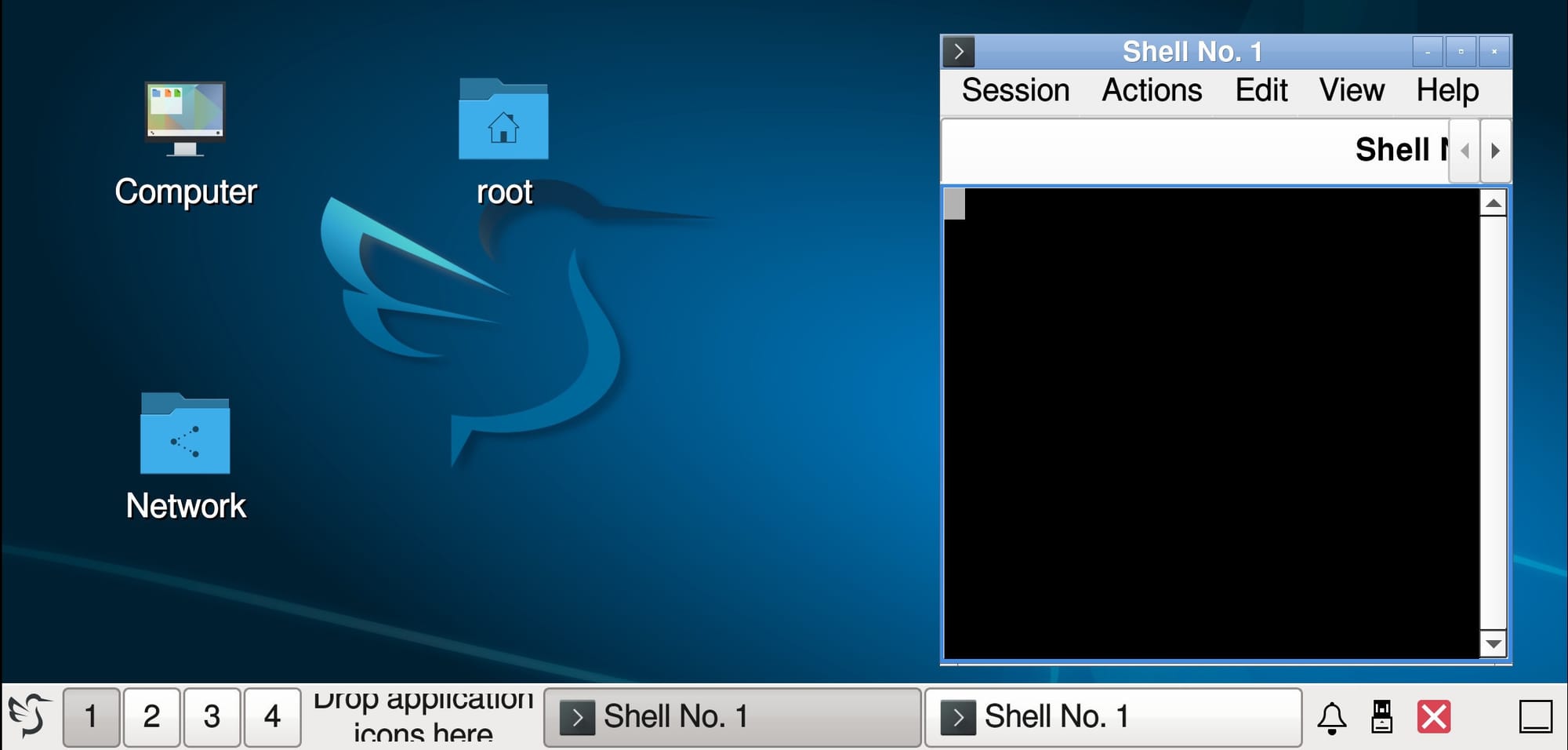
Once the download is complete, the app will automatically start the VNC server. You might need to install a VNC viewer app from the store if you don’t have one, but UserLAnd will often prompt you to do this or open it directly. When the viewer connects, you will see a familiar desktop background appear on your screen. You have now successfully installed a full Linux operating system on your Android device without rooting it.
Maximizing Productivity on Mobile Linux
Now that you have a Linux system running, what can you actually do with it? The possibilities are vast, but here are a few practical ways to utilize this new power.
For developers, this is a dream come true. You can install Python, Node.js, Git, and compilers directly on your phone. You can write code using a terminal-based text editor like Vim or Nano, or install a graphical code editor like Geany. This allows you to work on programming projects anywhere, without needing to lug around a heavy laptop.
If you are interested in web development, you can install a LAMP stack (Linux, Apache, MySQL, PHP). This turns your phone into a portable web server. You can build and test websites locally, ensuring they work perfectly before you upload them to the internet. It is also a great way to learn how servers and networking work in a safe environment.
Privacy enthusiasts will also find value here. You can run privacy-focused browsers like Tor or use command-line email clients that do not track your activity. Since this environment is sandboxed, any cookies or tracking files stored in Linux are isolated from your main Android Chrome browser, adding an extra layer of security to your digital life.
Understanding the Limitations
While running a desktop OS on a phone is impressive, it is important to have realistic expectations. Since we are not rooting the device, there are some hardware limitations. For example, direct access to certain hardware components like the Wi-Fi card for “monitor mode” (used for deep network analysis) is usually restricted. You can still perform networking tasks, but deep packet inspection might be limited compared to a rooted device.
Performance is another factor. Smartphones are powerful, but they are optimized for battery efficiency and touch interfaces. Running a heavy desktop environment with multiple windows open can drain your battery quickly and might feel a bit sluggish compared to a dedicated PC. To get the best experience, stick to lightweight desktop environments like XFCE or use the command line whenever possible.
Finally, the screen size is a constraint. While a phone screen is fine for quick tasks, running a full desktop interface on a six-inch screen can involve a lot of zooming and panning. For the best experience, consider connecting your phone to a monitor or TV via an HDMI adapter (if your phone supports it) and pairing it with a Bluetooth keyboard and mouse. This setup effectively turns your phone into a full desktop computer.
Is It Safe for Your Device?
One of the most common questions is whether this process will harm the phone or void the warranty. Because we are using non-rooted methods, the answer is generally yes, it is safe. You are not modifying the system partition of your Android device. The Linux system lives in your user storage, just like a photo or a video file.
If you decide you no longer want to use Linux, you can simply delete the app and the associated data folders. Your phone will return to exactly the state it was in before, with no lasting effects. This reversibility makes it the perfect way to experiment and learn without fear of breaking anything.
Conclusion
The ability to run a complete Linux operating system on an Android device without root access is a testament to how far mobile technology has come. It is no longer just a novelty for hackers; it is a practical tool for students, developers, and power users who want to break free from the limitations of a mobile-only ecosystem. By leveraging containerization technology, apps like UserLAnd and Termux make it accessible to everyone, regardless of their technical expertise.
Whether you want to learn a new skill, test code on the go, or simply explore the world of open-source software, your Android phone is ready for the challenge. It is time to stop looking at your phone as just a consumption device and start using it as the creative engine it was meant to be. Dive in, experiment, and unlock a new level of productivity that fits right in your pocket.
Source: insidertechno.com


